
A computer looks like one single machine, but it is really a team of parts working together. Every click, every saved file, and every video you watch depends on dozens of components doing their own small job at the exact right moment.
If you are a student, a beginner learning tech vocabulary, or someone building your first PC, knowing the correct names of computer parts makes everything easier. You will understand repair guides, follow tutorials, and talk to a technician without feeling lost.
In this guide, you will learn 100 Basic Computer Parts Names Every Beginner Should Know organized from the main components down to the smallest connectors. We will cover internal parts, external devices, cables, ports, networking hardware, and even the differences between desktop and laptop parts. By the end, you will have a full A to Z computer parts names list you can refer back to anytime.
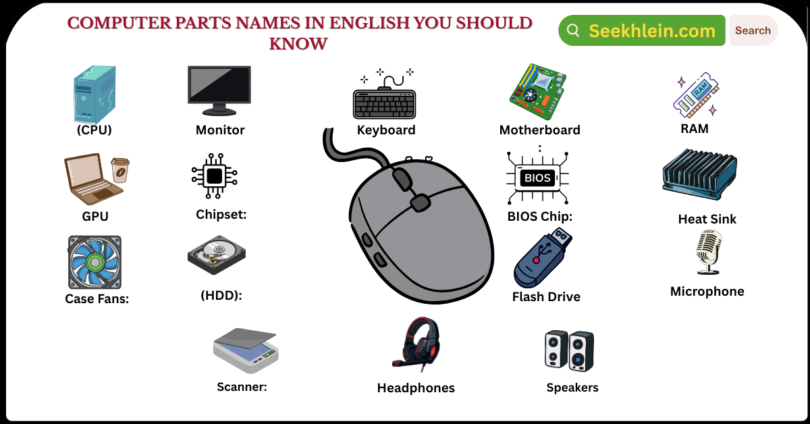
Computer Parts Names with Pictures
Before going into deep detail, here is a simple overview of what a typical computer picture shows you.
When you open a desktop case or look at a labeled diagram, you generally spot these elements first:
- The case or tower that holds everything
- The motherboard sitting in the middle
- The CPU seated under its cooler
- RAM sticks standing upright in their slots
- A graphics card plugged into the main expansion slot
- One or more storage drives
- The power supply unit at the back or bottom
- Cables running between every part
Picture based learning works well here because computer hardware can feel abstract in words alone. Once you see where each piece physically sits, the names stick much faster.
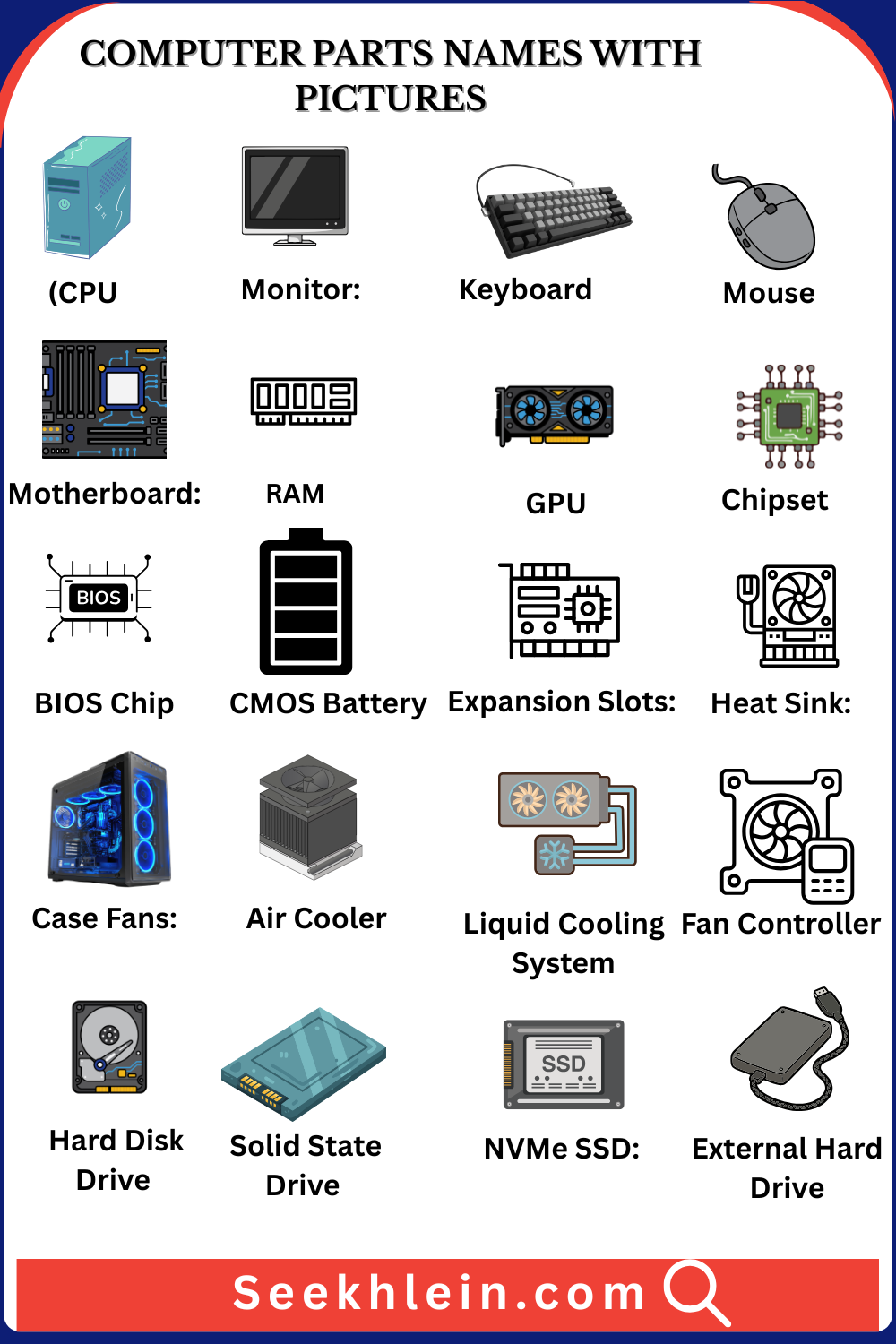
4 Main Parts of a Computer
Every desktop or laptop, no matter the brand or price, is built around four essential parts. These are considered the core of any working computer system.
- Central Processing Unit (CPU): Often called the brain of the computer, the CPU carries out instructions and performs the actual calculations behind every task.
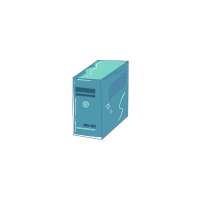
- Monitor: The screen that displays everything the computer is doing, from your desktop icons to a full movie.
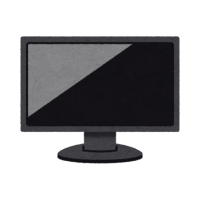
- Keyboard: The main input device used to type letters, numbers, and commands.
- Mouse: A pointing device that lets you click, select, drag, and navigate the screen.
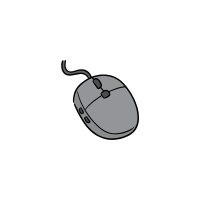
Without these four, a computer cannot function in any practical sense. Everything else you will read below adds power, speed, storage, or convenience on top of this base.
Internal Computer Parts
Internal parts live inside the case and rarely get touched once the machine is assembled. Still, they do almost all of the real work.
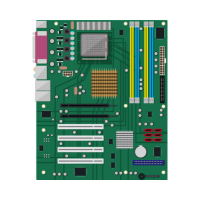
- Motherboard: The main circuit board that connects the CPU, RAM, storage, and graphics card so they can communicate with each other.
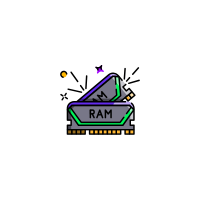
- RAM (Random Access Memory): Short term memory that holds data the CPU is actively using. More RAM allows smoother multitasking.
- GPU (Graphics Processing Unit): Handles images, video rendering, and game graphics. It can be built into the motherboard or added as a dedicated graphics card.
- Chipset: A set of chips on the motherboard that manages communication between the processor and other components.
- BIOS Chip: Firmware that starts the computer and checks hardware before the operating system loads.
- CMOS Battery: A small battery that keeps BIOS settings and the system clock running even when the computer is unplugged.
- Expansion Slots: Openings on the motherboard used to add cards such as sound cards, capture cards, or extra graphics cards.
Cooling System Parts
Computers generate heat, and without proper cooling, components can slow down or fail early. The cooling system usually includes:
- CPU Cooler or Heat Sink: Draws heat away from the processor.
- Case Fans: Move air through the case to push hot air out and pull cool air in.
- Air Cooler: A budget friendly heat sink and fan combination for the CPU.
- Liquid Cooling System: Uses a pump, tubing, and a radiator to cool high performance systems more efficiently than air alone.
- Fan Controller: Adjusts fan speed based on temperature to balance noise and cooling.
Types of Storage Devices
Storage keeps your files safe even after the power is turned off. There are a few common types found in modern machines:
- Hard Disk Drive (HDD): Uses a spinning magnetic disk and a moving arm to read and write data. It offers large storage at a lower price.
- Solid State Drive (SSD): Stores data on flash memory chips with no moving parts, making it faster and more durable than an HDD.
- NVMe SSD: Connects directly to the motherboard through a PCIe slot for even higher speed than a standard SSD.
- External Hard Drive: A portable storage device connected through a USB port for backups or extra space.
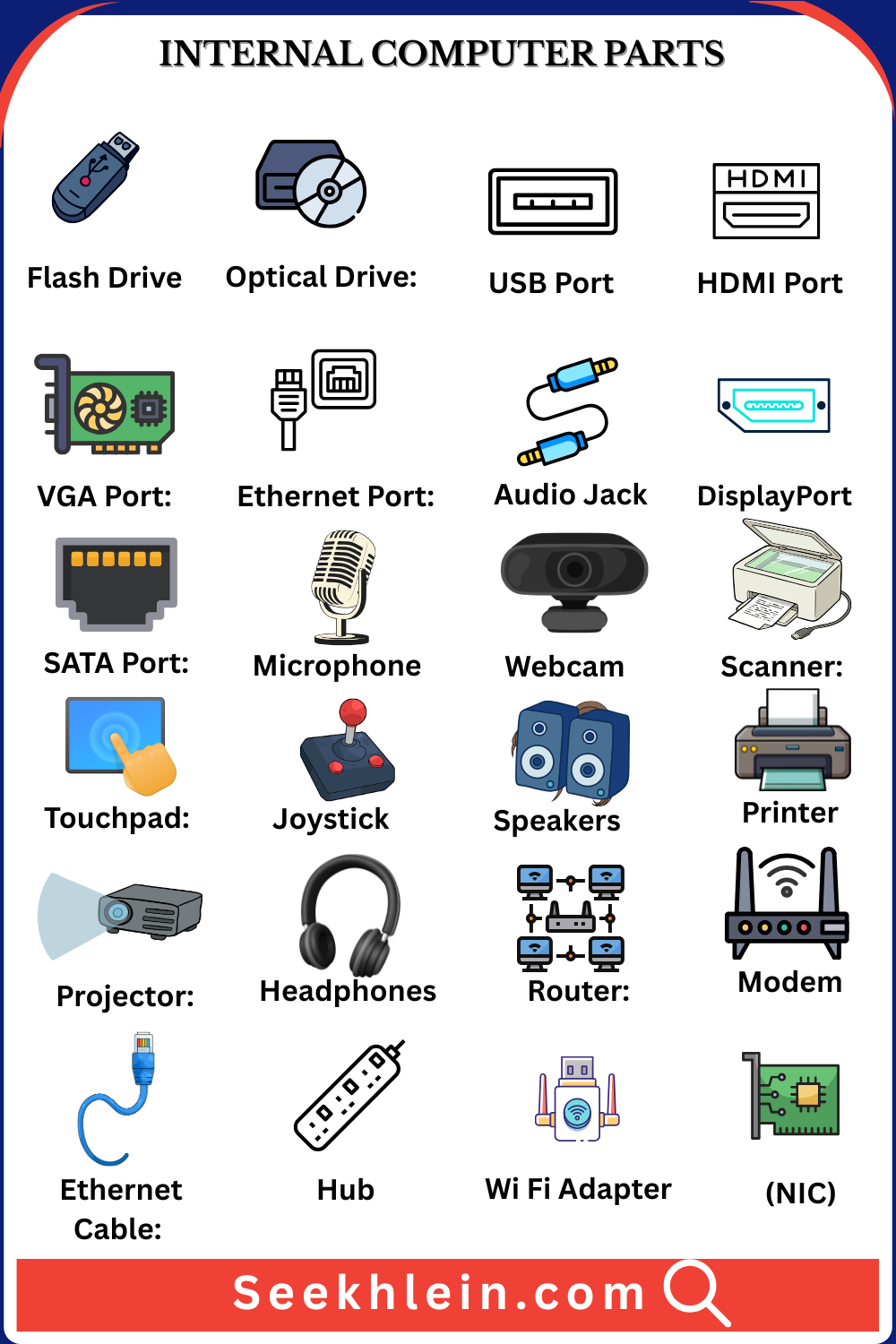
- Flash Drive: A small, pocket sized storage device also known as a USB stick.
- Optical Drive: Reads and writes CDs, DVDs, or Blu ray discs, though many newer computers no longer include one.
Computer Case
The case, also called the tower or chassis, is the outer shell that houses every internal part. It protects components from dust and damage while allowing airflow for cooling. Cases come in different sizes, including full tower, mid tower, and small form factor builds that fit neatly under a desk or in a backpack bag.
Computer Cables, Ports and Connectors
Cables and ports are what allow every part of the system to talk to each other and to the outside world. Without them, even the best hardware would sit idle.
Computer Ports
A port is simply an opening where a cable plugs in. Common ports include:
- USB Port: Connects keyboards, mice, flash drives, and countless other devices.
- HDMI Port: Sends both video and audio to a monitor or television.
- VGA Port: An older video only connector still found on some monitors and projectors.
- Ethernet Port: Connects the computer to a wired network for internet access.
- Audio Jack: Used for headphones, microphones, and external speakers.
- DisplayPort: A modern video connector often used for high refresh rate gaming monitors.
- SATA Port: Connects internal hard drives and SSDs to the motherboard.
Power Supply Unit
The Power Supply Unit, known as the PSU, converts electricity from a wall outlet into the specific voltages each component needs to run safely. It sends power to the motherboard, storage drives, graphics card, and cooling fans through a set of cables.
Choosing a PSU with enough wattage is important, especially for systems with a dedicated graphics card, since an underpowered supply can cause random shutdowns or prevent the system from starting at all.
External and Peripheral Computer Parts
These are the parts you can see and touch every day, sitting outside the main case.
Input Devices
Input devices allow you to send commands and information into the computer.
- Keyboard: Types letters, numbers, and symbols.
- Mouse: Points, clicks, and scrolls.
- Microphone: Records voice for calls, videos, or voice commands.
- Webcam: Captures video for meetings and recordings.
- Scanner: Converts paper documents or photos into digital files.
- Touchpad: A flat surface on laptops used instead of a mouse.
- Joystick or Game Controller: Used mainly for gaming input.
Output and Peripheral Devices
Output devices show or produce the results of what the computer has processed.
- Monitor: Displays visuals, from desktop icons to full videos.
- Speakers: Produce sound from music, games, or calls.
- Printer: Puts digital documents onto paper.
- Projector: Displays the screen onto a larger surface such as a wall.
- Headphones: Deliver private audio output directly to the ears.
Computer Networking Parts
Networking parts allow a single computer to connect with others, share files, and reach the internet.
Networking Devices
- Network Interface Card (NIC): Allows a computer to connect to a wired or wireless network.
- Wi Fi Adapter: Adds wireless internet capability to a desktop that lacks it built in.
- Router: Directs internet traffic between your local network and the wider internet.
- Modem: Converts signals from your internet provider into a format your network can use.
- Ethernet Cable: A physical cable used for stable, wired internet connections.
- Bluetooth Adapter: Enables short range wireless connections to devices like keyboards, mice, and speakers.
- Hub or Switch: Connects multiple devices within the same local network.
Complete A to Z Computer Parts Names List
Here is a full alphabetical reference so you can find or review any term quickly.
Adapter, Address Bus, AGP Slot, Audio Card, Audio Jack, BIOS Chip, Bluetooth Adapter, Case Fan, Central Processing Unit, Chipset, CMOS Battery, Cooling Fan, CPU Cooler, Data Bus, Display Adapter, Docking Station, Drive Bay, DVD Drive, Ethernet Adapter, Ethernet Cable, Expansion Card, Expansion Slot, External Hard Drive, Fan Controller, Flash Drive, Floppy Disk Drive, Front Panel Connector, Graphics Card, Graphics Processing Unit, Hard Disk Drive, Heat Sink, HDMI Cable, HDMI Port.
Headphone Jack, USB Hub, IDE Cable, IDE Connector, Input Device, Internal Hard Drive, Joystick, Keyboard, Liquid Cooler, Modem, Monitor, Motherboard, Mouse, Network Interface Card, NVMe SSD, Optical Drive, Power Cable, Power Supply Unit, Printer, Processor, RAM, Router, SATA Cable, Scanner, Sound Card, Solid State Drive, Speakers, Switch, Touchpad, USB Cable, VGA Cable, Webcam, Wi Fi Card.
Desktop vs Laptop Computer Parts
Desktop and laptop computers share many of the same core components, but the way those parts look and connect can be quite different.
PC Parts Names with Pictures
A desktop PC keeps every major part as a separate physical piece. You will typically see:
- A full sized motherboard with several expansion slots
- A tower case with room for multiple fans and drives
- A dedicated graphics card that can be swapped or upgraded
- A separate monitor, keyboard, and mouse
- An external or internal power supply unit with visible cabling
This separation makes desktop parts easier to upgrade or replace one at a time.
Laptop Computer Parts
A laptop compresses everything into one portable shell. Key differences include:
- A built in screen instead of a separate monitor
- A built in keyboard and touchpad instead of separate input devices
- A battery for portable power, along with a charging port
- A smaller motherboard designed to fit the laptop chassis
- Soldered or limited upgrade RAM and storage in many modern models
- A slimmer cooling system using small fans and thin heat pipes
Because laptop parts are built for a compact frame, repairs and upgrades are usually more limited compared to a desktop.
Label the Parts of a Computer Worksheet
A labeling worksheet is one of the best tools for locking in these names, especially for students, kids, and English learners. A good worksheet usually includes:
- A blank diagram of a desktop tower with numbered parts
- A separate diagram for laptop parts
- A word bank listing all components to match
- A short answer key so learners can check their work
Teachers and parents can use this kind of worksheet in a classroom, at home, or as part of a basic computer literacy course. Practicing with pictures rather than plain text helps the names of computer parts stay in memory much longer.
Conclusion
Learning the 100 Basic Computer Parts Names Every Beginner Should Know does not need to feel overwhelming. Once you understand the four main parts, the internal components, the cables and ports, and the external peripherals, everything else becomes much easier to place.
Whether you are troubleshooting a slow PC, building your first custom rig, or simply expanding your vocabulary, this guide gives you a solid, complete reference to return to anytime you need it.
FAQs
What are the 4 main parts of a computer?
The four main parts are the CPU, monitor, keyboard, and mouse, since every basic desktop setup needs these to function.
What is the brain of the computer called?
The Central Processing Unit, or CPU, is called the brain of the computer because it processes nearly every instruction the system runs.
What is the difference between RAM and storage?
RAM is temporary memory used only while a task is running, while storage such as an SSD or HDD keeps files permanently, even after shutdown.
What are examples of input and output devices?
Keyboards, mice, and scanners are input devices, while monitors, printers, and speakers are common output devices.
Do laptops have the same parts as desktops?
Yes, laptops contain the same core parts as desktops, but they are built smaller, more compact, and often less upgradeable.
What does the motherboard actually do?
The motherboard connects and allows communication between the CPU, RAM, graphics card, and storage drives inside the computer.
Read more: